The formats QRinst offers
Next to the preview there are two main buttons, Download PNG and Download SVG. The ⋯ button holds three more: JPG, WebP and PDF. Everything is generated in your browser.
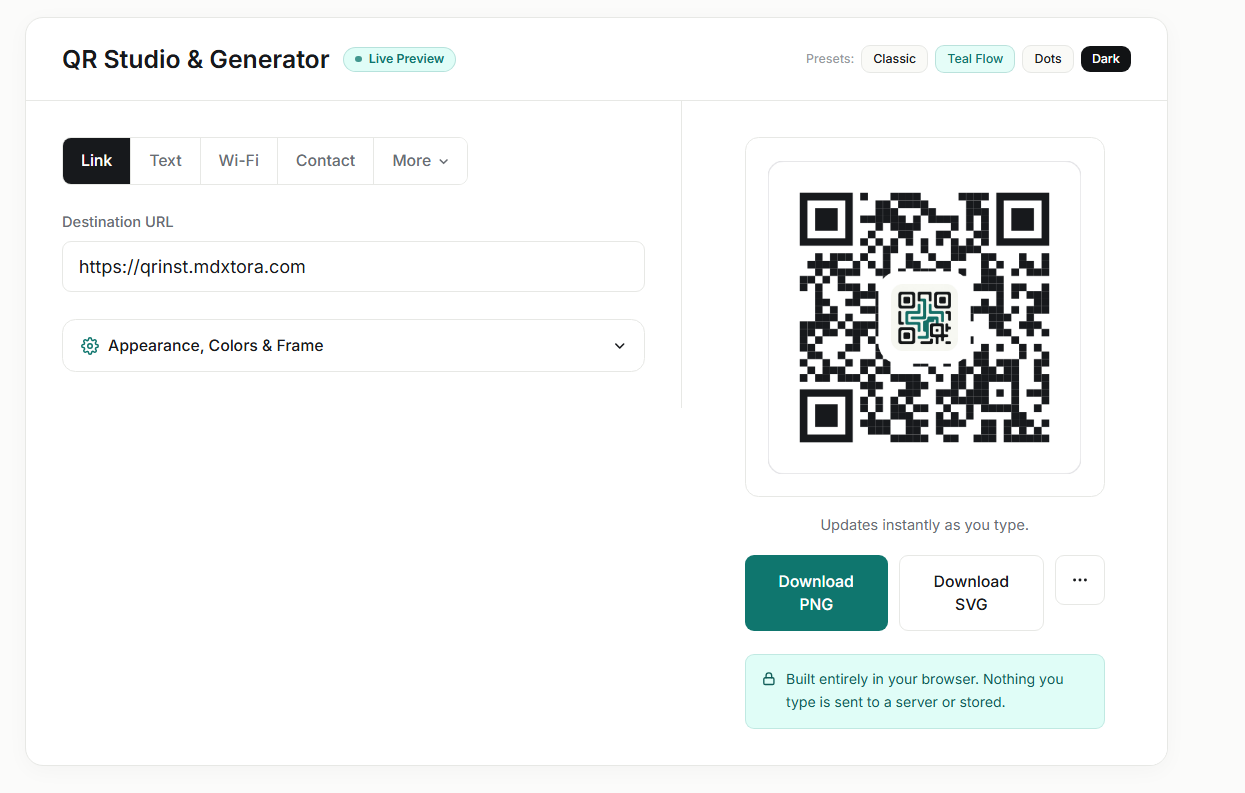
Which one should you pick?
- SVG is a vector file, so it stays sharp at any size. Choose it for posters, packaging, signs and anything a designer will place in Figma or Illustrator.
- PNG is the safe default for websites, slides and messages. Export it large enough that it will not be stretched.
- PDF is convenient when you want a single file to send to a printer or open straight from your computer.
- JPG and WebP are smaller files for web use. JPG is lossy, so avoid it for small codes or fine details.
Avoid common mistakes
- Never enlarge a small PNG. It blurs and may stop scanning. Export a bigger one or use SVG.
- Do not crop the white margin around the code; it is part of the code. See the troubleshooting guide.
- Keep dark modules on a light background, whatever the file type.
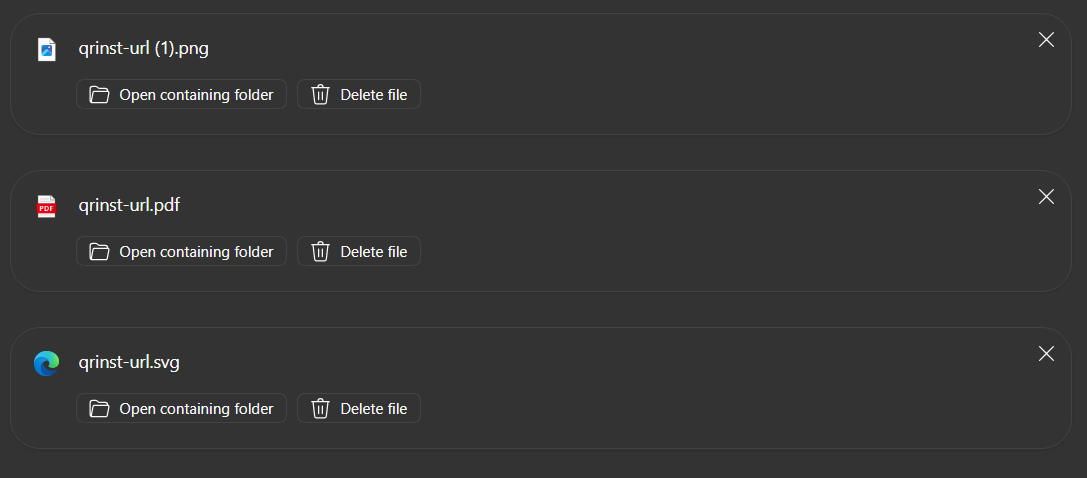
Whichever format you choose, run the final file through the QR checker before printing.
Resolution and size for PNG
A PNG is made of pixels, so its sharpness depends on how many it has. For a screen, a few hundred pixels across is enough. For print, work out the size you need: at 300 dots per inch, a 5 cm code needs roughly 600 pixels, and a 10 cm code roughly 1200. When in doubt, export larger than you think you need. Shrinking a big file looks fine, while stretching a small one blurs the edges between modules.
Each square in a QR code should be several whole pixels wide. If the code is blurry when you zoom in, the exported size was too small.
When SVG is the better choice
SVG describes the code as shapes rather than pixels, so it is perfectly sharp at a business-card size and on a billboard. It is the format to give a print shop, sign maker or designer, and it can be recoloured or placed inside a layout without any loss of quality.
- Open it in Figma, Illustrator or Inkscape to place it on your artwork.
- Do not add a drop shadow, gradient or transparency over the modules.
- Keep the white margin; it is part of the file for a reason.
A quick checklist before you hand over the file
- Scan the downloaded file itself, not only the preview on the screen.
- Check it with the QR checker for quiet zone, contrast and minimum size.
- Decide the final printed width and confirm it using the print size guide.
- Print one proof on the real material and scan it with two different phones.
More guides
- What size should a printed QR code be?
- How to make a Wi-Fi QR code guests can scan to connect
- QR code not scanning? 9 common causes and fixes
- How to make a QR code menu for your restaurant
- How to put a vCard QR code on your business card
- Static vs dynamic QR codes: which one should you use?
- How to make a WhatsApp QR code that opens a chat
- Are QR codes safe? How to spot and avoid malicious codes
- How to add a logo to a QR code without breaking it
- How to track QR code scans with UTM links
- QR code colours: what scans and what does not
- How to make an email QR code with a pre-filled subject and message
- How to make a location QR code that opens a map
- How to make an SMS QR code with a pre-written text message
- How to make an event QR code that adds to a calendar
- How to make a social media QR code that opens your profile
- How to make a phone number QR code that starts a call