Why a logo can still scan
A QR code carries built-in redundancy called error correction. Even if part of the pattern is hidden, a scanner can rebuild the missing data. A logo in the centre covers some modules, so it only works if the code has enough redundancy to spare. The more of the code the logo covers, the less room for error is left for dirt, glare or a slightly blurry print.
Add a logo in QRinst
- Open the QRinst generator and enter your link.
- Expand Appearance, Colors & Frame and open the Logo tab.
- Upload your own image (PNG, JPG, WebP or SVG, up to 1 MB) or pick one of the popular logos.
- The tab shows Logo added and the preview updates instantly.
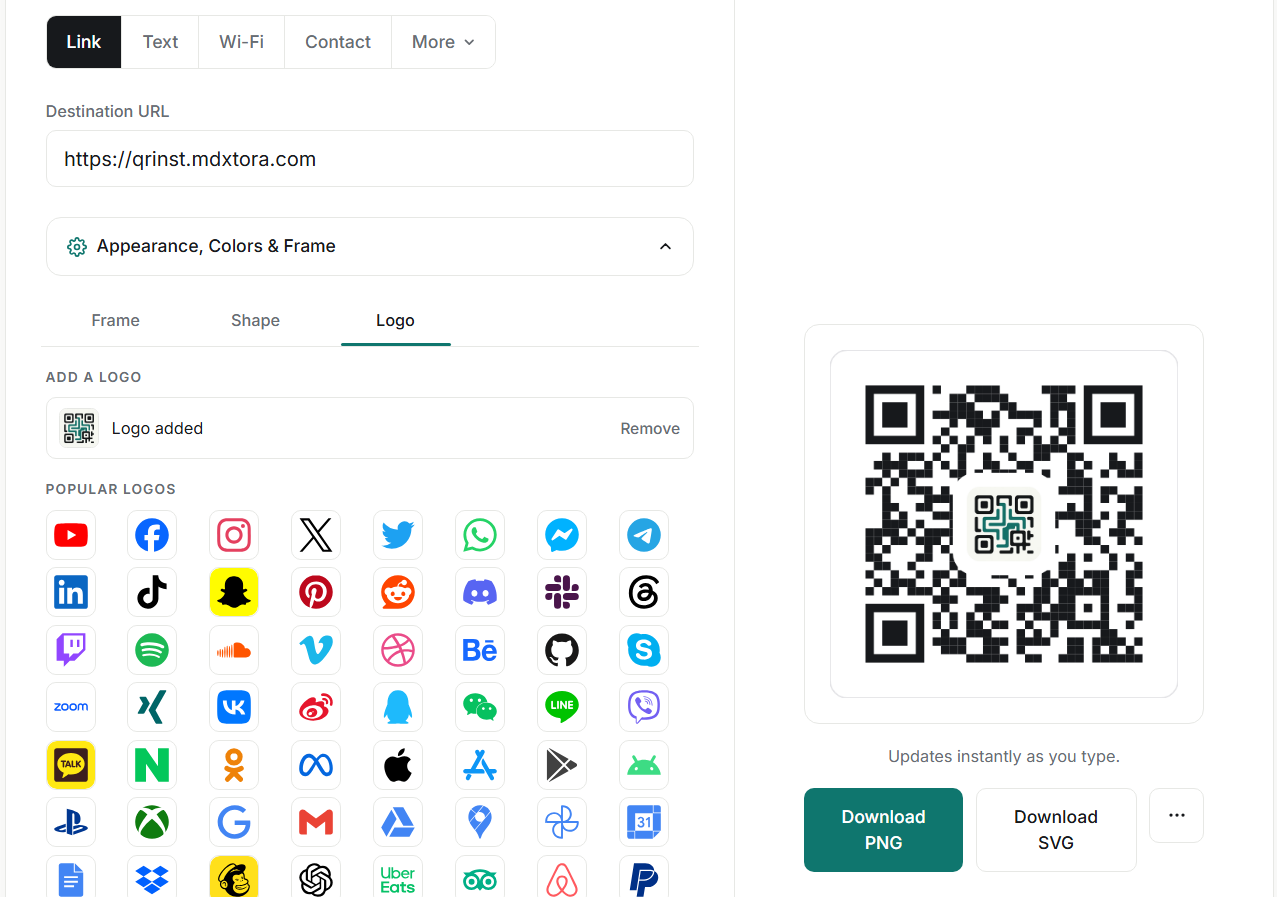
Keep the logo small
Use the size slider to keep the logo modest. QRinst shows an amber warning when the logo becomes too large for reliable scanning, so treat that warning as a hard limit rather than a suggestion. A simple logo on a plain padded background reads better than a detailed one.
In the advanced options, set Error correction to High when you use a logo. The panel reminds you of this too. High error correction makes the pattern a little denser, so make sure the printed code is not too small.
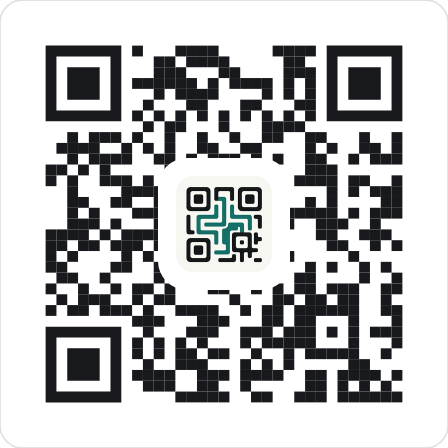
Test before you print
Download the code, then upload it to the QR checker. It decodes the code, reports the quiet zone and contrast, and tells you if the pixel size is too small. Then scan it with at least two phones, from the distance people will actually use. See what size a printed QR code should be for the distance rule.
Choosing a logo that works
Not every logo suits the middle of a QR code. Simple, bold shapes with few colours survive the shrinking best. Fine lettering, thin outlines and tiny taglines turn into a smudge at the size a logo takes up in the pattern. If your full logo is detailed, use just the symbol or monogram instead of the whole lockup.
- Use a square or round version of the logo, not a wide banner.
- Prefer a transparent or solid light background so the logo sits on a clean pad.
- Upload a sharp, high-resolution file. A blurry upload looks worse once scaled.
- SVG logos stay crisp at any size and are the best choice when you have one.
Common logo mistakes
- Covering too much. The logo hides data, so the bigger it is, the less error correction is left over. If the amber warning appears, make the logo smaller.
- Using a low error-correction level. Low and Medium leave little spare capacity. Set it to High whenever there is a logo.
- Combining a logo with a very long link. A long link already makes a dense code, and adding a logo on top compounds the problem. Shorten the content or use a dynamic code, as explained in the static vs dynamic guide.
- Low-contrast colours. A logo does not make up for pale modules. Keep the pattern dark on light (see QR code colours).
More guides
- What size should a printed QR code be?
- How to make a Wi-Fi QR code guests can scan to connect
- QR code not scanning? 9 common causes and fixes
- How to make a QR code menu for your restaurant
- How to put a vCard QR code on your business card
- Static vs dynamic QR codes: which one should you use?
- How to make a WhatsApp QR code that opens a chat
- Are QR codes safe? How to spot and avoid malicious codes
- PNG, SVG or PDF? Which QR code file format to download
- How to track QR code scans with UTM links
- QR code colours: what scans and what does not
- How to make an email QR code with a pre-filled subject and message
- How to make a location QR code that opens a map
- How to make an SMS QR code with a pre-written text message
- How to make an event QR code that adds to a calendar
- How to make a social media QR code that opens your profile
- How to make a phone number QR code that starts a call