The problem with untracked codes
A plain QR code to your home page looks the same in analytics as any other visit. If you print a flyer, a poster and a table card, you cannot tell which one worked. UTM parameters fix this by adding a label to the link, which tools such as Google Analytics read and report.
Build a tagged link
- Open the UTM builder.
- Enter the destination page.
- utm_source: where the traffic comes from, for example
qr_print. - utm_medium: the material, for example
flyerortable_tent. - utm_campaign: the promotion name, for example
offline_promo. - Optionally add a term and a content variant to tell two prints of the same campaign apart.
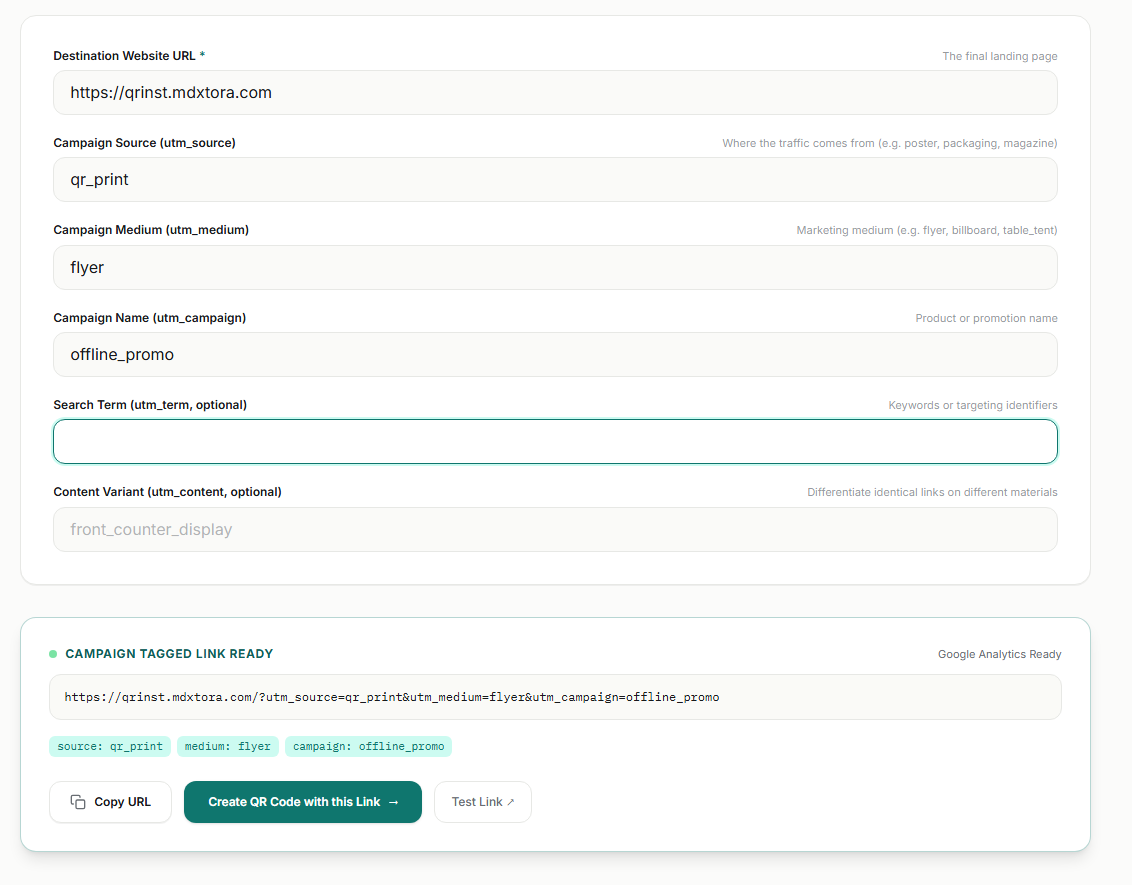
Turn it into a QR code
Press Create QR Code with this Link and the tagged link is carried into the generator. Download the code and use a different link for each print run so the reports separate them. Keep names lowercase and consistent: Flyer and flyer appear as two different values in reports.
Static or dynamic?
A tagged link inside a static code cannot be changed later. If you might want to edit the destination after printing, use a dynamic code. The static vs dynamic guide explains the trade-off. A longer link also makes a denser code, so test it with the QR checker.
Naming conventions that keep reports clean
The labels only help if you use them the same way every time. Write down a short list of allowed values before you print anything, and reuse them across campaigns.
- Use lowercase letters and underscores, with no spaces or special characters.
- Keep
utm_sourcefor where the QR code lives (print, packaging, poster). - Keep
utm_mediumfor the material (flyer, table_tent, sticker). - Name campaigns by promotion and period, such as
autumn_sale_2026. - Use
utm_contentto tell two designs or locations of the same material apart.
Reading the results in analytics
In Google Analytics, open the traffic acquisition report and look at source, medium and campaign. Visits from your codes appear under the labels you chose, so you can compare a flyer against a table card, or two venues, directly. Give each print run enough time to collect scans before drawing conclusions, and remember that only people who scan and then load your page are counted.
Mistakes to avoid
- Tagging internal links. UTM labels are for traffic coming from outside your site. Using them on links between your own pages overwrites the real source of a visit.
- One code for everything. If every print uses the same link, the report cannot separate them. Make a distinct tagged link per placement.
- Personal data in labels. Never put names, emails or order numbers into a UTM value. The link is visible to anyone who scans or shares it.
- Skipping the test. A tagged link is longer, so the code is denser. Print a proof and confirm it scans before the full run.
More guides
- What size should a printed QR code be?
- How to make a Wi-Fi QR code guests can scan to connect
- QR code not scanning? 9 common causes and fixes
- How to make a QR code menu for your restaurant
- How to put a vCard QR code on your business card
- Static vs dynamic QR codes: which one should you use?
- How to make a WhatsApp QR code that opens a chat
- Are QR codes safe? How to spot and avoid malicious codes
- How to add a logo to a QR code without breaking it
- PNG, SVG or PDF? Which QR code file format to download
- QR code colours: what scans and what does not
- How to make an email QR code with a pre-filled subject and message
- How to make a location QR code that opens a map
- How to make an SMS QR code with a pre-written text message
- How to make an event QR code that adds to a calendar
- How to make a social media QR code that opens your profile
- How to make a phone number QR code that starts a call