The rule: dark modules, light background
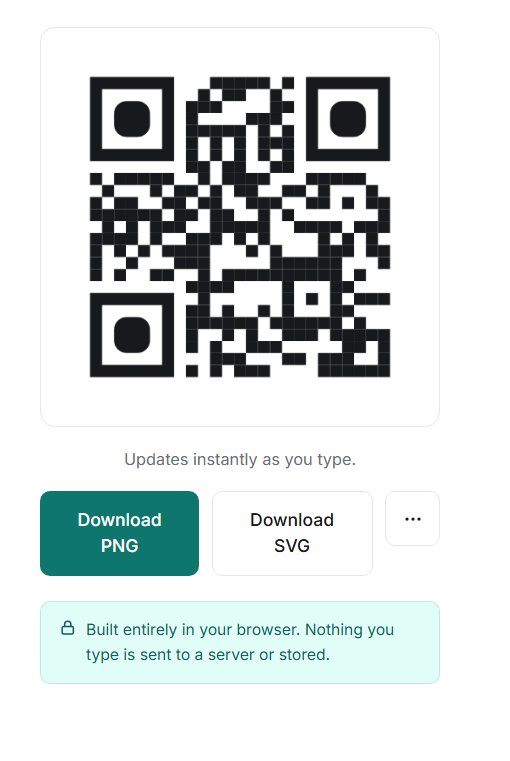
Scanners look for dark squares on a light background. The classic black on white is the safest. You can use colour, but the code must stay clearly darker than its background. Inverted codes (light on dark) fail on many scanner apps.
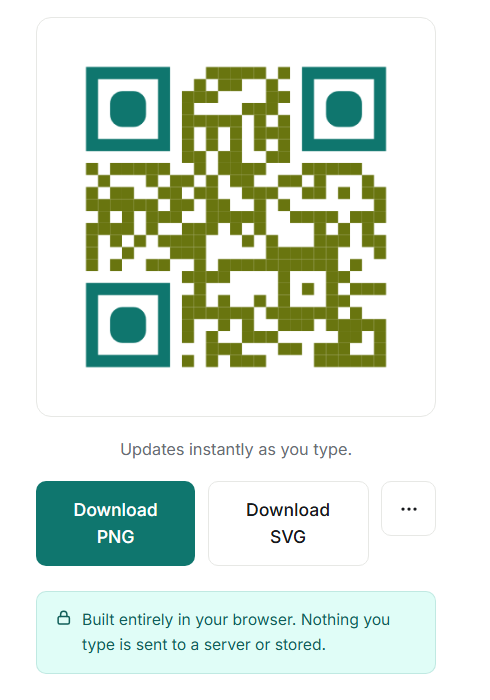
A colourful example, tested
Here the finder squares are teal and the data modules olive green. It looks friendly, but the olive is noticeably lighter than black.
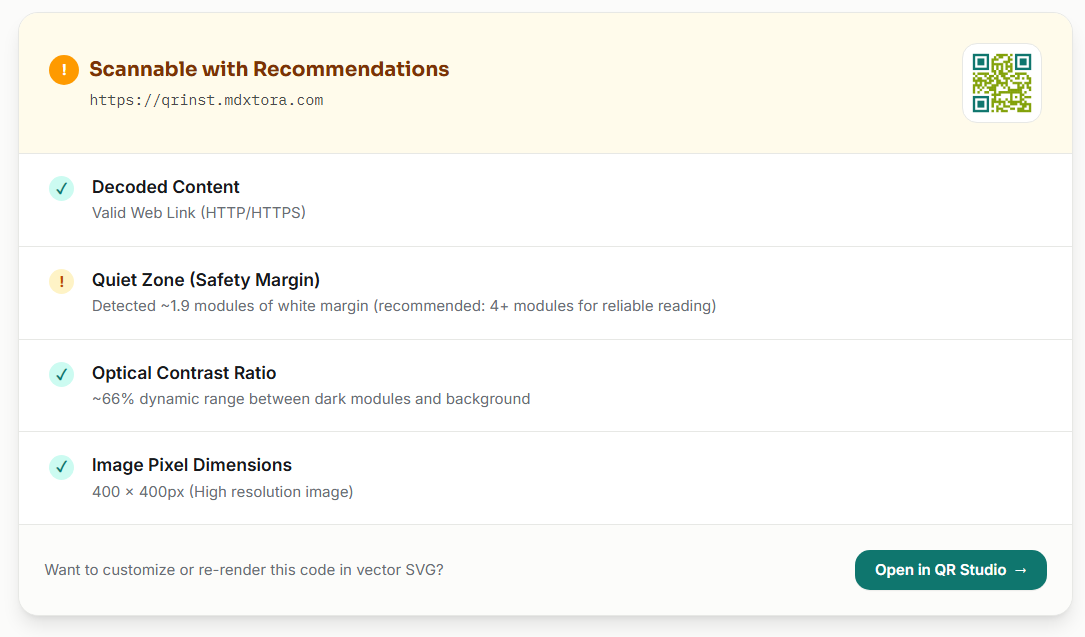
Uploading it to the QR checker gives a useful answer. It decoded the link and measured about 66% contrast, which passes, but it still returned Scannable with Recommendations because of a margin warning. That is the point of testing rather than guessing.
Practical tips
- Keep every module darker than the background, not just the corners.
- Avoid light grey, yellow or pastel on white.
- Keep the white margin around the code; do not place colour right against it.
- Print colours look different from screens, so print a proof and scan it.
- When in doubt, go darker. See why a QR code is not scanning.
How scanners see colour
A phone camera turns the image into black and white before it reads the pattern. It decides, square by square, whether each one is dark or light. Colours that look different to your eyes but have a similar brightness, such as red on dark green, can come out as the same grey and merge together. What matters is the difference in brightness, not the hue.
A good test is to look at your design in greyscale. If the pattern is still obvious as dark against light, a scanner will cope. If it fades, change the colours.
Safe and risky combinations
- Safe: black, navy, dark green or dark brown on white or cream.
- Usually fine: a deep brand colour on white, if it is dark enough.
- Risky: mid-tones such as orange, light blue or lime on white.
- Avoid: yellow, pastel or grey modules, and anything on a photo or gradient background.
- Avoid: light modules on a dark background, which many apps cannot read.
A coloured background is fine as long as it stays light and flat. A busy or patterned background behind the code interferes with the quiet zone, so place the code on a plain white or light panel.
Colour on screen versus on paper
Screens glow and paper reflects, so the same colour looks different in each. Inks also dry lighter than they appear in a design file, and glossy surfaces add glare. A code that scans comfortably on your monitor can lose contrast in print. Print a proof on the final stock, check it in the lighting where it will be used, and compare it with the guidance in the print size guide.
More guides
- What size should a printed QR code be?
- How to make a Wi-Fi QR code guests can scan to connect
- QR code not scanning? 9 common causes and fixes
- How to make a QR code menu for your restaurant
- How to put a vCard QR code on your business card
- Static vs dynamic QR codes: which one should you use?
- How to make a WhatsApp QR code that opens a chat
- Are QR codes safe? How to spot and avoid malicious codes
- How to add a logo to a QR code without breaking it
- PNG, SVG or PDF? Which QR code file format to download
- How to track QR code scans with UTM links
- How to make an email QR code with a pre-filled subject and message
- How to make a location QR code that opens a map
- How to make an SMS QR code with a pre-written text message
- How to make an event QR code that adds to a calendar
- How to make a social media QR code that opens your profile
- How to make a phone number QR code that starts a call